
AnalyticsTutorial15 min read
How to Set Up GA4 Key Events for a Small Business Website: Forms, Phone Clicks and Purchases
Google Analytics 4 records page views on its own, but it only counts your enquiries and sales as key events when you set them up. Here's how to do that for forms, phone and email clicks and purchases, test it, and pass the results to Google Ads.
The Social Stellor Studio · Creative Team
Google Analytics, Tag Manager and Google Ads help pages were checked on November 25, 2026. Menu names change often; the steps describe Google's pages as they read that day. All example businesses and numbers are hypothetical.
In this guide
 Google Analytics
 Google Ads
You open Google Analytics, see a few hundred visitors a month, and have no idea how many of them filled in your contact form, tapped your phone number or bought something. That's normal. Google Analytics 4 (GA4) collects page views and a handful of interactions on its own, but it only treats an action as a business result, a key event, when you tell it to.
This tutorial walks a small business through that setup, one enquiry route at a time: contact forms (with and without a thank-you page), phone and email clicks, and online purchases. It then covers counting, lead values, testing, and sending the results to Google Ads. Wherever there's a no-code option, we start with it. Every example business and number in it is hypothetical.
- A key event is an event you've marked as important to your business. Google's wording: "A key event is an event that measures an action that's particularly important to the success of your business." Google Ads conversions can then be created from key events.
- Write a one-page measurement plan first: each action, how it will be detected, the event name, and whether it's a key event. A standard GA4 property can mark up to 30 key events, so be selective.
- Forms with a thank-you page need no code: create a new event from page_view for that URL and mark it as a key event. Never mark page_view itself.
- Give phone and email clicks their own events, using Tag Manager's link-click trigger or a line of code from your developer. A click on your number is not a completed call.
- Test every key event yourself in DebugView or Realtime before you rely on it, and allow up to 24 hours for standard reports.
Events, Key Events and Conversions in 60 Seconds
GA4 records almost everything as an event: a page view, a scroll, a click. Google's help page puts the relationship simply: "Any event you collect can become a key event." A key event is just an event you've starred as important. If you remember GA4 reports showing "conversions", those are now called key events. Google now uses "conversion" for a key event that's set up for ad measurement, mainly in Google Ads: Google says "A conversion is created from a Google Analytics event" and measures important actions "in both Google Analytics and Google Ads."
| Term | Where it lives | What it means for you |
|---|---|---|
| Event | Google Analytics | Any interaction GA4 records, such as page_view or form_start. Most are background noise. |
| Key event | Google Analytics | An event you've marked as a business result: an enquiry, a call click, a sale. Shows in your key event reports. |
| Conversion | Mainly Google Ads | A key event (or other action) that Google Ads counts and can optimize bids toward. |
- Where it lives
- Google Analytics
- What it means for you
- Any interaction GA4 records, such as page_view or form_start. Most are background noise.
- Where it lives
- Google Analytics
- What it means for you
- An event you've marked as a business result: an enquiry, a call click, a sale. Shows in your key event reports.
- Where it lives
- Mainly Google Ads
- What it means for you
- A key event (or other action) that Google Ads counts and can optimize bids toward.
Step 1: Write a One-Page Measurement Plan
Before touching any settings, list every way a customer can contact you or pay you through the website. This takes ten minutes and stops two mistakes we see often: starring everything (so the numbers mean nothing) and forgetting a route (so a channel looks worse than it is). Google allows "up to 30 events as key events for standard properties and 50 events as key events for Analytics 360 properties", which is plenty for a small business if you only star real outcomes.
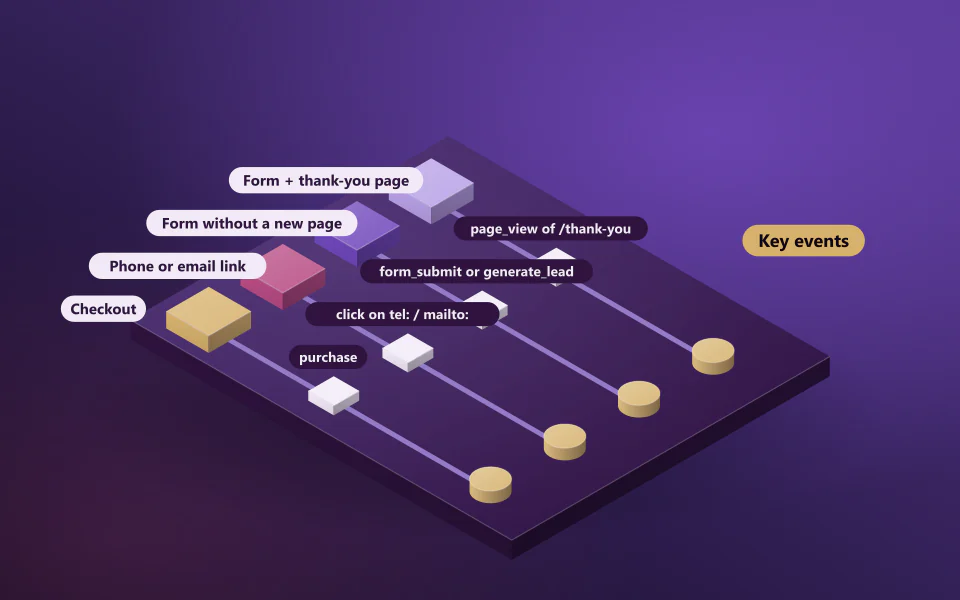
| Customer action | How GA4 can detect it | Suggested event name | Key event? |
|---|---|---|---|
| Contact form, sends visitor to a thank-you page | A page view of the thank-you URL (no code) | generate_lead or thank_you | Yes |
| Contact form, shows a message on the same page | Enhanced measurement's form_submit (test it), Tag Manager, or code | generate_lead | Yes |
| Tap or click on your phone number | Tag Manager link-click trigger, or code | phone_click | Yes |
| Click on your email address | Tag Manager link-click trigger, or code | email_click | Usually yes |
| Online booking completed | Booking confirmation page, or the booking tool's own integration | generate_lead (or a custom name) | Yes |
| Online purchase | Your store's Google Analytics integration, or code | purchase | Yes (marked by default) |
| Newsletter sign-up | Thank-you page or form event | sign_up | Your call: useful, but not a sale |
| Someone starts filling in a form | Enhanced measurement's form_start | form_start | No: it's a step, not a result |
- How GA4 can detect it
- A page view of the thank-you URL (no code)
- Suggested event name
- generate_lead or thank_you
- Key event?
- Yes
- How GA4 can detect it
- Enhanced measurement's form_submit (test it), Tag Manager, or code
- Suggested event name
- generate_lead
- Key event?
- Yes
- How GA4 can detect it
- Tag Manager link-click trigger, or code
- Suggested event name
- phone_click
- Key event?
- Yes
- How GA4 can detect it
- Tag Manager link-click trigger, or code
- Suggested event name
- email_click
- Key event?
- Usually yes
- How GA4 can detect it
- Booking confirmation page, or the booking tool's own integration
- Suggested event name
- generate_lead (or a custom name)
- Key event?
- Yes
- How GA4 can detect it
- Your store's Google Analytics integration, or code
- Suggested event name
- purchase
- Key event?
- Yes (marked by default)
- How GA4 can detect it
- Thank-you page or form event
- Suggested event name
- sign_up
- Key event?
- Your call: useful, but not a sale
- How GA4 can detect it
- Enhanced measurement's form_start
- Suggested event name
- form_start
- Key event?
- No: it's a step, not a result
generate_lead and purchase are Google's recommended event names. Google describes generate_lead as an event that "measures when a lead has been generated (for example, through a form)". Using recommended names where they fit keeps your reports consistent with Google's documentation. For anything else, choose your own name and follow Google's naming rules: "Event names are case sensitive", and they "must start with a letter. Use only letters, numbers, and underscores. Don't use spaces." So phone_click and Phone_Click would be two different events. Pick lowercase and stick to it.
Step 2: Forms With a Thank-You Page (No Code)

If your form sends people to a separate page after they submit it (for example, /thank-you), you can build the key event entirely inside GA4. Google is explicit that you shouldn't simply star page_view: you "can't mark that event as a key event since all pageviews will then count as key events." Instead, you create a new event that only fires on the thank-you page. Following Google's steps:
- In Admin, under Data display, click Events.
- Click + Create event. If the button is missing, check your role on the property with whoever administers your GA4 account.
- Enter a name for the new event (Google's example is thank_you; generate_lead also works). Turn on the toggle to mark it as a key event if you want, and choose a default value and counting method (both explained below).
- Under "Choose how to create an event", select Create without code.
- Choose page_view from the event name dropdown.
- Enter your thank-you page's URL in the URL field.
- Click Create.
Don't edit page_view itself to match only the thank-you page. Google warns that if you do, "the event will no longer collect pageview data for other pages on your website." Always create a new event based on it.
Two practical checks make this method reliable. First, the thank-you page should only be reachable by submitting the form: if it's linked from your menu or indexed in search, visits that aren't enquiries will be counted. Second, if you have several forms (a quote form and a general contact form, say), give each its own thank-you page so you can tell them apart. Google notes the new event shows in the Custom events table straight away but won't appear in Recent events until Analytics has processed one.
Step 3: Forms Without a Thank-You Page
Many modern forms show a "Thanks, we'll be in touch" message without loading a new page. There's no page view to build on, so you have three options, in order of effort.
Option A: enhanced measurement's form_submit
GA4's enhanced measurement can record form interactions automatically. Google lists two events: "'form_start': the first time a user interacts with a form in a session" and "'form_submit': when the user submits a form". To check the setting, go to Admin, then Data collection and modification, then Data streams, select your web stream and look under Enhanced measurement. Its settings icon lets you turn individual options on or off.
If form_submit is already appearing for your site, you can star it. Before you do, submit your own form and confirm one form_submit arrives (see Step 7). Google's description doesn't say which form builders it works with, so treat it as something to verify on your site rather than assume. If you have more than one form, note that the form's details (form_id, form_name and so on) are collected as parameters, and Google says "You can only use the parameters in your reports if you create custom dimensions for them."
Option B: Tag Manager
If your site already uses Google Tag Manager, a GA4 Event tag can send generate_lead when the form's success message appears or the form's own success event fires. How you detect that moment depends on the form tool, so this is usually a job for whoever built the site. The tag setup itself is the same as for phone clicks in Step 4.
Option C: ask your developer for one line of code
Google's developer documentation gives the pattern for sending an event with the Google tag: gtag('event', '<event_name>', { <event_parameters> }). A developer can add gtag('event', 'generate_lead') to the form's success handler. The Google tag must already be on the page: Google says it "won't process data from events that you place above the Google tag snippet." Once the event arrives, star it as in Step 5.
If traffic is arriving but enquiries aren't, measurement is only one of the possible causes. Our guide to website traffic but no conversions covers the others: visitor intent, friction and follow-up.
Step 4: Phone and Email Clicks
For many local businesses the phone is the main enquiry route, and it's often left untracked. A phone number on a website is usually a link that starts with tel:, and an email address one that starts with mailto:. You can send an event when someone clicks either. With Google Tag Manager, based on Google's help pages:
- Make sure your GA4 measurement ID is to hand (it starts with G-) and that the built-in Click URL variable is active in your container.
- Create a trigger: go to Triggers, click New, open Trigger Configuration and choose the Just Links click trigger, which Google describes as tracking "clicks only on HTML links that use the <a> element".
- Under "This trigger fires on", select Some Clicks, and set the condition Click URL contains tel: (make a second trigger with mailto: for email).
- Create a tag: choose Google Analytics: GA4 Event, enter your Measurement ID, and enter phone_click as the Event Name (or email_click for the email trigger).
- Attach the trigger in the tag's Triggering box.
- Click Preview in the Workspace tab to test with Google Tag Assistant, click your own number, and confirm the tag fires.
- Click Submit, then publish the new version.
Google's trigger also offers "Wait for Tags" and "Check Validation" options. If you're unsure, leave them at their defaults and confirm the event arrives in GA4 during testing. If your site doesn't use Tag Manager, the same result comes from a developer adding gtag('event', 'phone_click') to the phone link's click handler.
A phone click is not a phone call. GA4 sees that someone tapped your number; it can't see whether they dialed, got through, or booked. On a desktop computer, a tel: link may open a calling app or nothing at all. Treat phone_click as intent, and compare it with your call log.
If you advertise on Google, Google Ads can measure calls more directly. Its help page says that once call reporting is on, "new calls will be counted with the default conversion action 'Calls from ads'" for calls from call and location assets. For calls to the number on your website from people who arrived by clicking your ad, Google Ads can use "dynamically-generated Google forwarding numbers that replace your business number on your site" (in eligible countries, with a snippet added to your site), and counts a call as a conversion "when it lasts longer than a minimum length you set." That's measured in Google Ads, not GA4, so the two totals won't match. If you're weighing pay-per-click against pay-per-lead for calls, see our comparison of Google Ads vs. Local Services Ads.
Step 5: Purchases, and How to Mark Key Events
If you sell online, you may have less to do. Google says it marks purchase as a key event by default for websites and apps. The work is making sure a correct purchase event reaches GA4 in the first place. Google's developer documentation lists the parameters purchase expects: currency, value, transaction_id and items, and notes that "If you set value then currency is required" for revenue to be calculated accurately.
- Check your store platform first. If its built-in Google integration already sends purchase events, don't add your own code on top, or each sale may be counted twice.
- Make sure every order sends a unique transaction ID. Google says "Google Analytics deduplicates purchase events with the same transaction ID", so a customer reloading the order confirmation page shouldn't create a second sale, as long as the same ID is sent. Google also warns: "Don't send an empty string as the transaction ID", because all purchases with an empty ID are deduplicated together.
- Place a real test order (and refund it) after any change, then check that the value and currency in GA4 match the order.
Marking events as key events
For events GA4 has already received (form_submit, phone_click and so on), Google's steps are: in Admin, under Data display, click Events, find the event on the Recent events tab, and "Mark the event as a key event by clicking the star icon next to it." For an event that hasn't arrived yet, you can mark it ahead of time: click + Create event, enter the exact event name, and turn on the Mark as key event toggle. The name must match exactly, including case.
Google's help pages list different minimum roles for these tasks (Viewer, Marketer and Editor all appear, depending on the page and the action), so if the star or the + Create event button is missing, ask whoever administers your GA4 property to check your role.
Step 6: Choose How Key Events Are Counted and Valued
Counting: once per event or once per session
Google offers two counting methods. "Once per event" (marked Recommended) "Counts a key event every time it's triggered." "Once per session" (marked Legacy) "Counts a key event only once within a particular session." Once per event is the default for key events you create in GA4. To change it, open Events under Data display, go to the Key events tab, click the More icon on the key event's row, choose Change counting method, and save. Google notes that changes "apply to future key events only, and won't apply to a key event's past data."
Here's why it matters, with a hypothetical example. A hypothetical cleaning company receives 30 genuine form enquiries in a month, and 6 of those visitors reload the thank-you page. Counted once per event, the thank_you key event shows 36 (30 + 6 = 36), six more than the real number. Counted once per session, it shows 30, but a visitor who genuinely sends two different enquiries in one visit would then count only once.
Value: optional, but useful for leads
Purchases carry their real order value. Leads don't have one, but you can assign a default value when you create the key event. Google says "The value parameter must be a number (e.g., 50) and must be accompanied by a currency parameter," and that if either parameter is "missing or invalid, the event is recorded with the correct count, but it won't be sent to Google Ads."
A simple way to set a lead value: average revenue per job multiplied by the share of enquiries that become jobs. For the same hypothetical cleaning company, an average job brings in $300 and one in four enquiries books, so a lead is worth about $300 × 25% = $75. That isn't profit, and it isn't exact, but it lets you compare channels on value rather than on raw counts. In the UK, set the currency to GBP and use figures excluding VAT. If you'd rather base it on what a customer is worth over time, our CAC and customer lifetime value calculator estimates lifetime value in gross profit, a more conservative figure.
Step 7: Test Every Key Event Yourself
Never trust a key event you haven't triggered yourself. DebugView in Google Analytics "displays the events and user properties that Analytics collects from a user in real time". To use it, turn on debug mode with Google Tag Assistant (tagassistant.google.com) or Tag Manager's Preview mode, then in Admin, under Data display, click DebugView.
- Open your site in Tag Assistant or Tag Manager Preview.
- Submit each form once, click your phone number and email address once, and (if you sell online) place a test order.
- In DebugView, check that each expected event arrives once, with the exact name in your plan.
- Check Realtime as well: Google says "Realtime reports update a few minutes after a user triggers a key event."
- Wait before judging the reports: Google advises allowing "up to 24 hours for it to show up in standard reports."
- Repeat the test after any website change, new form plugin or redesign. Tracking often breaks then.
One sign of a half-finished setup is an event that appears in your event counts but never as a key event. That usually just means it hasn't been starred yet (Step 5).
Step 8: Send Key Events to Google Ads (If You Advertise)

If you run Google Ads, your key events can become Google Ads conversions, which lets you see cost per enquiry and lets automated bidding optimize toward real results. Google's requirements: "you'll need to link your Google Ads account to a Google Analytics account", auto-tagging must be on in Google Ads, and you need at least the Marketer role in Analytics and admin access in Google Ads. In Google Ads, Google's steps are:
- Go to Summary in the Goals menu.
- Click + Create conversion action.
- Select your Google Analytics property.
- Choose the key events to use, then click Select events.
- Click Save and continue.
Google says "It can take up to 24 hours before conversion data is available in Google Ads" after import. Expect Google Ads and GA4 totals to differ; Google lists counting methods, primary and secondary settings, invalid-click filtering, attribution dates (Google Ads uses the ad click date) and import delays among the reasons. Import only the key events that represent real enquiries or sales. If your campaigns are getting clicks but these conversions stay at zero, work through our checklist for Google Ads clicks but no conversions, which starts with the conversion setup.
Key Event Setup Check
Answer these about your own site. Answers stay in your browser; nothing is submitted or stored.
GA4 key event setup check
Your answers stay in this browser tab. Nothing is sent, saved or tracked, and there's no score: just a list of what's in place and what to fix first.
Your result
Answer the questions above and your list appears here. Answer “Not sure” honestly: if you're not sure, assume it isn't in place.
Frequently Asked Questions
What's the difference between a key event and a conversion in GA4?
In Google Analytics, the important actions you mark are called key events. A conversion is what Google Ads counts, and Google says a conversion "is created from a Google Analytics event". If you don't advertise on Google, key events are all you need.
Do I need Google Tag Manager to set up key events?
Not always. Thank-you page events can be created inside GA4 without code, purchases often come from your store's integration, and enhanced measurement may already record form_submit. Tag Manager (or a developer) is mainly needed for phone and email clicks and for forms that don't load a new page.
How many key events can I have?
Google allows up to 30 key events in a standard GA4 property and 50 in Analytics 360. Most small businesses need far fewer: one per enquiry route, plus purchases.
Why isn't my new key event showing in reports?
Google says to allow up to 24 hours for standard reports, while Realtime updates within minutes. If it's still missing, check that the event name matches exactly (names are case sensitive), that the event is starred, and that it fires in DebugView when you trigger it yourself. Changes to the counting method only apply from then on, not to past data.
Can GA4 track phone calls?
GA4 can track clicks on your phone number, which shows intent, but not whether a call happened or how long it lasted. For calls from ads and from your website after an ad click, Google Ads call tracking can count calls longer than a minimum length you set.
Should I mark form_start or scroll as key events?
We wouldn't. They show interest, not a result. Keep them as ordinary events for diagnosing where visitors drop off, and reserve key events for completed enquiries and sales.
What to Do Next
Today: write your measurement plan and set up the thank-you page events, which need no code. This week: add phone and email click events and test everything in DebugView. Next month: look at which channels bring key events, not just visitors, and if you advertise, import those key events into Google Ads so your cost per enquiry is visible. Channel reports are only as reliable as your links, so tag the links in your emails, social posts and other campaigns with our UTM campaign builder (Google Ads links are covered by auto-tagging). To turn those numbers into cost per lead and cost per sale, our ad metrics calculator does the arithmetic.
Want your enquiries and sales measured properly, from the website to Google Ads? Social Stellor builds and maintains small business websites with tracking set up and tested, and manages Google Ads in the US and UK.
Talk to Us About TrackingSee what's included on our web development and Google Ads service pages.
Sources and Further Reading
All sources were checked on November 25, 2026. Google updates its Analytics, Tag Manager and Google Ads interfaces often, so menu names may differ slightly in your account. Example businesses and calculations are hypothetical illustrations, not client results or benchmarks.
- Google Analytics Help, "Events and key events" (opens in new tab)
- Google Analytics Help, "Mark events as key events" (opens in new tab)
- Google Analytics Help, "Create or modify key events" (opens in new tab)
- Google Analytics Help, "About key event counting method" (opens in new tab)
- Google Analytics Help, "Enhanced measurement events" (opens in new tab)
- Google Analytics Help, "Monitor events in DebugView" (opens in new tab)
- Google Analytics Help, "Event naming rules" (opens in new tab)
- Google Analytics Help, "Minimize duplicate key events with transaction IDs" (opens in new tab)
- Google for Developers, Google Analytics recommended events reference (gtag.js) (opens in new tab)
- Google for Developers, Google Analytics guide to setting up events (gtag.js) (opens in new tab)
- Tag Manager Help, "Click trigger" (opens in new tab)
- Tag Manager Help, "Set up Google Analytics events in Tag Manager" (opens in new tab)
- Google Ads Help, "Create conversions from Google Analytics events in Google Ads" (opens in new tab)
- Google Ads Help, "Measure calls from ads" (opens in new tab)
- Google Ads Help, "Set up tracking calls to a phone number on a website" (opens in new tab)


Free tools for this topic
- CAC & Customer Lifetime Value CalculatorSee what it costs to win a customer, what that customer is worth in gross profit over time, and how long it takes to earn the acquisition cost back.
- Ad Metrics Calculator (CPC, CPM, CTR, CPA, ROAS)All the core advertising metrics from one set of campaign numbers, with the formulas shown and a profit check against your margin.
- UTM Campaign BuilderBuild a tagged link, see which GA4 channel it will most likely be reported under, and catch the naming mistakes that split one campaign into several rows.
Related articles


Analytics14 min read
Website Traffic but No Conversions?
Before redesigning your site or raising budgets, find out which of four problems is actually stopping your enquiries.

Google Ads16 min read
Google Ads Clicks but No Conversions?
Find where your Google Ads conversions break, checking the account in the order that costs least to rule out.
Google Ads17 min read
Google Ads vs Local Services Ads
Compare advertising costs, lead quality and payment models to choose the right campaign for your business.
Get new guides as they publish.
Follow our RSS feed in any feed reader, such as Feedly or Inoreader. No email address needed.
Follow by RSSOr browse everything we've published on the blog.